🎹 How to maximize the quality of your Zoom lessons
For best results:
Use a laptop or desktop computer
The desktop version of the Zoom app has more options for modifying the audio settings than the version for phone or tablet.
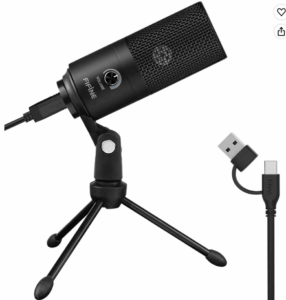
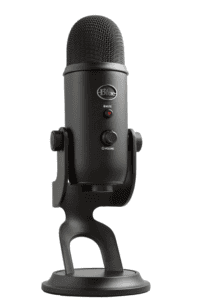
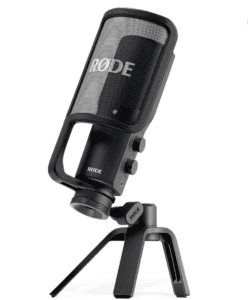
Use an external USB mic
The built-in microphone on laptops and desktops is poor quality and optimized for speaking, not music. A lot of sound quality will be lost without an external mic.
An external microphone is not required, but will significantly enhance your sound, which will enable me to hear you better and more accurately, therefore allowing me to give you more precise feedback.
Fortunately, a decent USB mic is not terribly expensive. Here are three options I recommend, in three different price ranges:
The built-in camera on your computer is perfectly adequate for Zoom lessons. However, place the camera so that your hands are visible on the keyboard.
You may find that you need to position the computer farther from the piano in order to capture your hands in the frame.
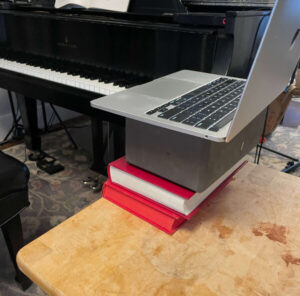
Here, the hands and the keyboard are visible.
You can set a laptop on boxes or books to find the optimal height.
(Optional): Use a second device to capture a different angle
It can be helpful to join the Zoom meeting with a second device (such as a tablet or phone) and place the device where you can see the hands better or use a different angle. This would, for example, allow you to place your computer closer to you and show your face, and use the second device to show your hands at the keyboard at a more optimal angle.
To do this, install the Zoom app on your device and join the meeting without sound enabled on that device. (If you enable the sound, that will cause feedback.)
You can then use the camera on the phone or tablet to capture a different angle than the angle from your computer.
Zoom Audio Settings for PC or Mac desktop or laptop:
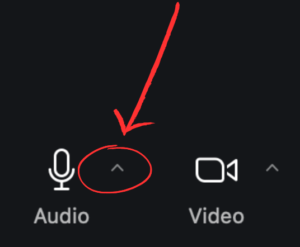
Once you have joined the meeting, open the audio settings by clicking on the triangle next to the “Audio” button.
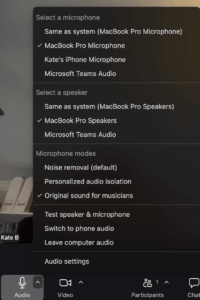
From the menu that appears, do the following four things:
Under “Select a microphone,” select your USB microphone. There will be a checkmark next to the microphone that is currently active.
Under “Select a speaker,” select your computer output as the speaker. There will be a checkmark next to the speaker that is currently active.
Under “Microphone modes,” select “Original sound for musicians.
Then, open “Audio settings” – the bottom choice on that menu. This will open a sidebar to the right of your video image.
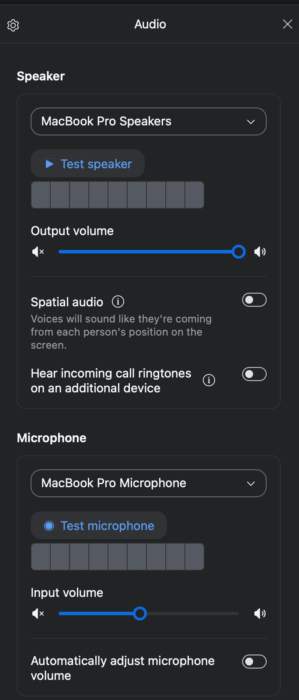
Audio Settings Menu – Settings:
“Speaker”:
You can see the speaker that is active. You have the option to change it by clicking on it.
Adjust the slider to change the volume
Spatial audio: Off
Hear incoming call ringtones on an additional device: Off
“Microphone”:
You can see the microphone that is active. You have the option to change it by clicking on it.
Adjust the slider to change the input volume.
Automatically adjust microphone volume: Off
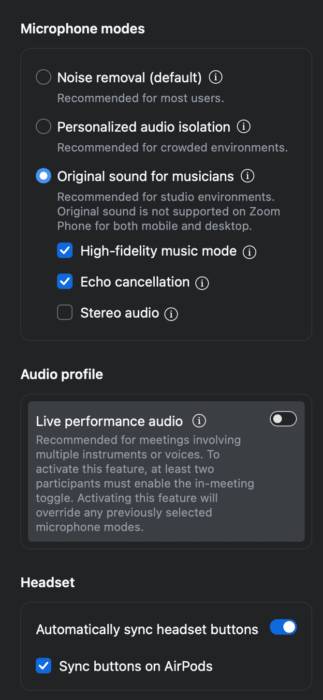
“Microphone modes”
Select “Original sound for musicians.”
High-fidelity music mode: checked
Echo cancellation: checked
“Audio profile”:
Live performance audio: off
“Headset”: choices here are irrelevant
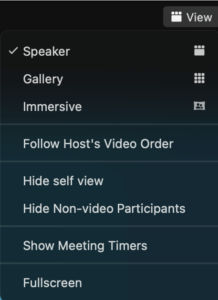
In the upper right-hand corner of the screen, hover over the rows of boxes and select either “Speaker” or “Gallery” view from the menu that appears
If you choose “Speaker” view, you will see the active speaker on your screen (whoever is speaking or playing).
If you choose “Gallery” view, you will see all meeting members on your screen at the same time.
Zoom Audio Settings for mobile devices (Android or iOS):
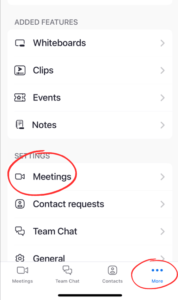
To adjust the sound on the Zoom app on a phone or tablet, the adjustment must be made in the app BEFORE joining a Zoom meeting.
From the home page of the app, select “More” by touching the three dots at the bottom or side of the screen.
Then, select “Meetings” from the menu.
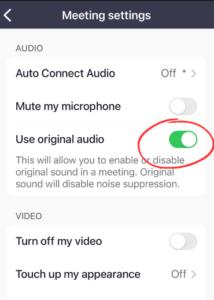
Under “Meeting settings,” toggle “Use original audio” to the “on” position.
Some links on this page are affiliate links. As an Amazon affiliate, when you click on a link I earn a small commission at no extra cost to you.